
How to Face Swap on iPhone



To face swap on iPhone, install Face Swap AI from the App Store, choose a template (or Create Your Own for two photos), add a selfie from your camera or gallery, and tap Swap Face. The result appears in under a minute and you can save it straight to Photos.
The steps below go through each screen, plus the settings that trip people up the first time.


Quick steps
- Install the app. Download Face Swap AI from the App Store. It runs on iPhone and iPad with iOS 13 or later.
- Choose a template or two photos. Pick the Female or Male tab and open a template, or tap Create Your Own Face Swap to use any two photos.
- Add your selfie. Tap Camera to take a new selfie or Gallery to pick one from Photos. Use a sharp, front-facing photo.
- Tap Swap Face. The swap runs on the server and usually takes under a minute. Keep the app open while it works.
- Save or share. Tap Save to add the result to Photos or Share to send it. Every swap also stays in History.
Before you start
- An iPhone or iPad on iOS 13 or later.
- A clear selfie, or a new one taken by a window.
- An internet connection. The face swap runs on a server, so the app shows an offline banner without one.
- A PRO subscription. The paywall appears on your first swap. Browsing templates is free.
What each screen looks like
The home screen opens on the Female tab with the pink Create Your Own card at the top and featured templates below it. Open any template and you'll see the template photo full size with a circle for your selfie and a Swap Faces button.
After your first swap the app remembers your selfie, so the next template only needs one tap. While the AI works, a progress screen shows the template with a cancel button. When it's done you land on the result with Save and Share underneath.
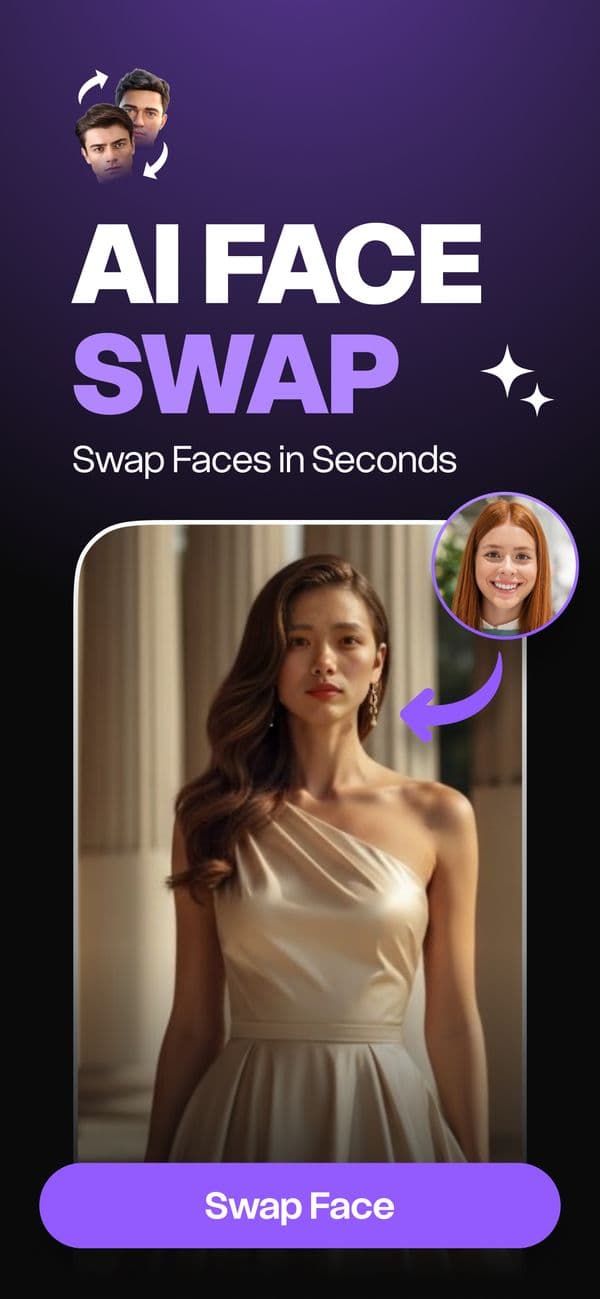
Swapping faces between two of your own photos
Create Your Own works the same way, with one extra step: you choose the photo the face comes from and the photo it goes into. We cover angles and lighting for this in how to swap faces between two photos.
Fixing common face swap problems on iPhone
- The app can't see my photos. Open Settings → Face Swap AI → Photos and choose Full Access or add the photos you need under Selected Photos.
- The result looks blurry. The selfie was probably soft or tiny. Retake it in daylight with your face filling more of the frame.
- The face looks pasted on. Your head is turned differently from the template's. Pick a template facing the same way as your selfie.
- Stuck on processing. Check your connection, tap cancel and try again.
Where your face swaps are saved
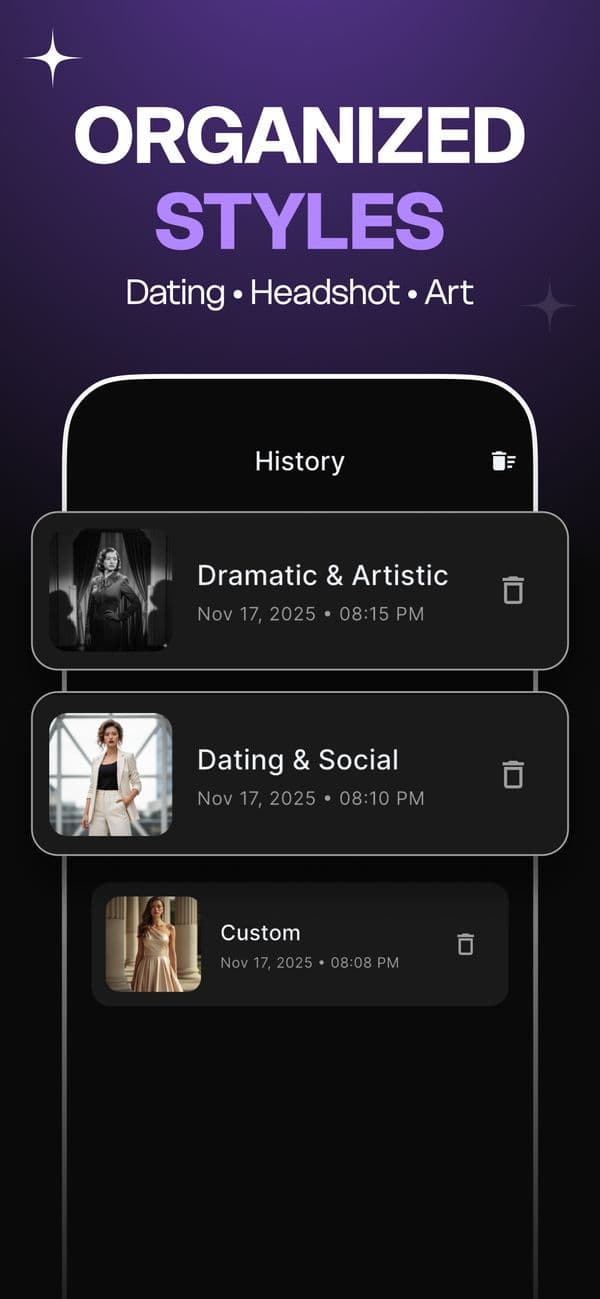
Every result goes into the History screen, grouped by style with the date and time. Tap the bin icon to delete one, or the clear-all icon at the top to wipe everything. Results you saved to Photos stay in your library until you delete them there.
Questions
Does face swapping work on iPad?
Yes. Face Swap AI runs on iPad as well as iPhone, on iOS 13 or later, and your PRO subscription covers both if you use the same Apple ID.
Can I face swap without an internet connection?
No. The AI runs on a server, so you need Wi-Fi or mobile data while the swap is processing. Saved results in History open offline.
Keep reading



Swap faces between two photos
Swap faces between any two photos on your phone: pick the face, pick the target, tap swap. How to match angle and light so the result looks real.



8 tips for a realistic face swap
Why some face swaps look fake and how to fix it: angle, light, sharpness, expression, hair, glasses and skin tone. Eight tips for any AI face swap app.


Free AI face swap: what's really free
Looking for a free AI face swap? What free web tools and apps really give you, where the catch is, and when an app like Face Swap AI is the better pick.